- HELP
chain volume
record arm
mixer toggles
chain balance
chain mute
---
main volume
add chain
move chain
select chain
chain control
chain options

Mixer View

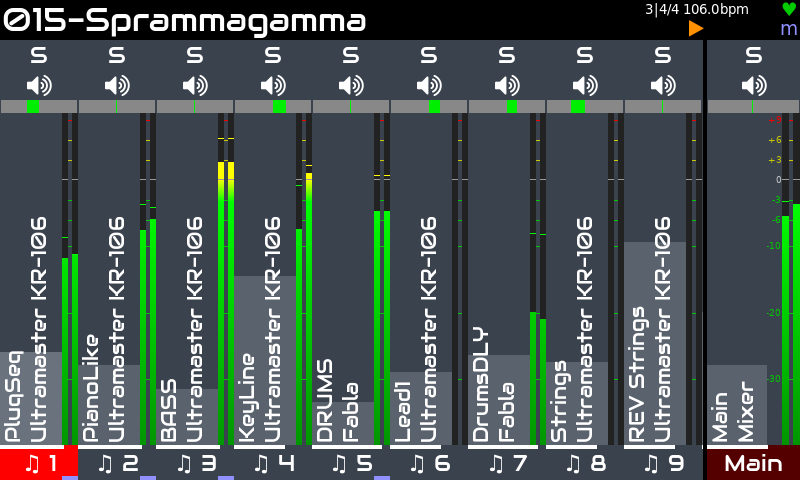
The mixer is the zynthian's root view. You can always access the mixer by pushing the MIX button. You can also push BACK until reaching it. From the launcher, you can access the mixer by pushing BACK. Similarly, from the mixer, you can access the launcher by pushing BACK. Mixer and Launcher are, indeed, a single view with 2 modes.

It's composed of vertical strips associated with chains. Initially it will be empty, showing the main strip alone. For each chain you create, a new strip is added to the mixer. There can be more mixer strips than can be displayed. They will scroll left / right if you select a strip that is off screen.

Each strip is an interactive widget that can be manipulated in several ways, showing status info about the associated chain. From top to bottom:
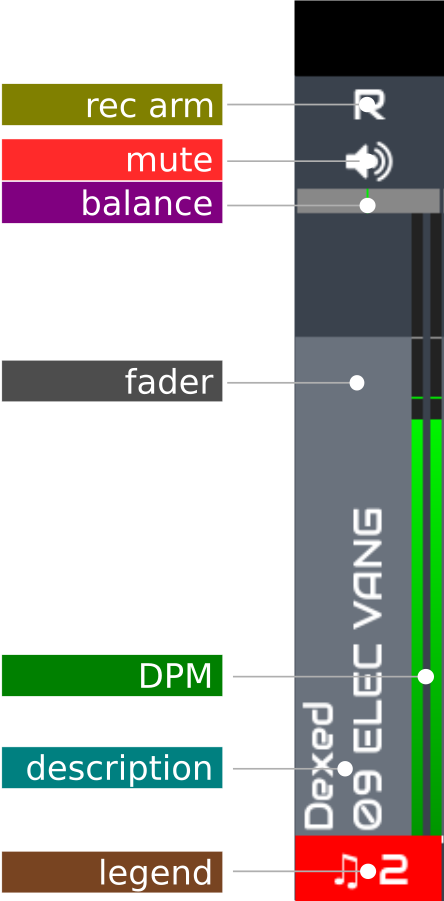
  • Rec Arm: Record-armed flag. Push to toggle. Audio output from record-armed chains is included in multi-track recordings as separated track. From admin menu, this can be configured as any other mixer toggle: solo, pfl, mono, phase or M+S. When configured as solo, it's non-exclusive solo mode. When a chain is solo-ed, all not solo-ed chains will be muted, allowing auditioning of one or more chains. The main solo will disable all chain solos.
  • Mute: Mute flag. Push to toggle. When a chain is muted ("mute" enabled), it will remain silent.
  • Balance/Pan: Mixing right/left balance (or pan of a mono signal) for the associated chain. Rotate knob 2 or drag left & right on the fader to modify.
  • Fader: Mixing volume for the associated chain. Rotate knob 1 or drag up & down to modify the fader level. On the touchscreen you can drag multiple faders at once. Tap it to set the active chain.
  • DPM: Digital Peak Meter for the associated chain, covering the range from -50dBFS to 0dBFS.
  • Description: A vertically oriented text describing the chain. By default, for a synth chain it will show synth processor and preset name. If you give a name to the chain, this will be included in the description too.
  • Legend: It shows an icon for the chain's type and a number for the assigned MIDI channel. Tap it to access the chain's control view.

Adding chains

To create a new chain from the mixer view, simply short-push knob 3. Please note that F3 is not available for this from the mixer view. If your zynthian hasn't knobs, you can change to the launcher view (short BACK) or use the main menu (short OPT) to add chains.

Chain selection

The active chain is indicated by the legend at the bottom of the strip being highlighted red. You may change active chain by using the LEFT/RIGHT arrow buttons or rotating Knob 4. A thin strip at the bottom of the legend indicates the chain is active for MIDI input.

Moving chains

You can reorganize your columns (chains), moving any chain horizontally to the position you want. You can also dock the chains into the right side, sticked to the main chain.

  • Bold-push Knob 3 to start moving the selected chain. The chain legend will display a double-arrow symbol.
  • Use LEFT/RIGHT arrow buttons or rotate Knob 4 to move the chain to the desired position. To dock a chain into the right side, simply keep moving it to the right.
  • Short-push SELECT or BACK to finish.

Please note that, from the mixer view, F3 is not available for moving chains. If your zynthian hasn't knobs, change to the launcher view (short BACK) for moving chains.