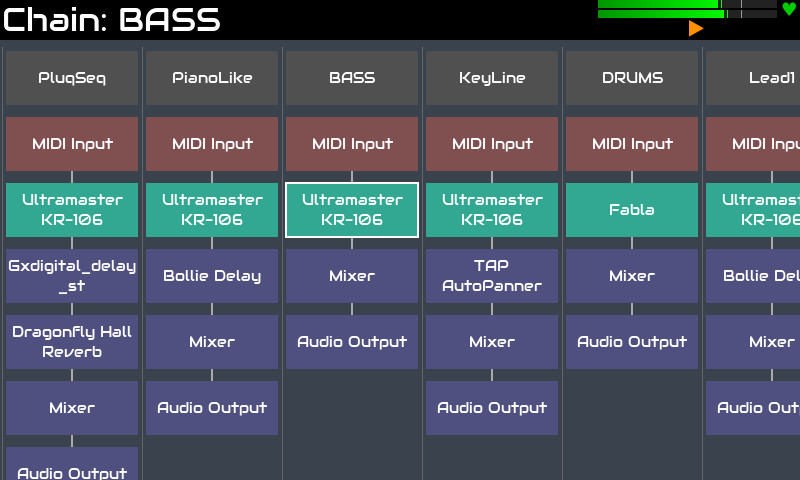
This view represents chains and their elements as a scrollable grid. (With a touchscreen, you can move the view by dragging the background.) Chains are shown left to right as columns of interconnected blocks, representing inputs, processors, outputs, etc. with the signal flow from top to bottom. The main chain is always on the far right.
Each chain consists of one or more processors. These are represented by blocks laid out in a vertical column. Audio and/or MIDI signal flows from top to bottom. Processors may be in parallel, in which case additional columns will be shown with parallel processors in the same row.
The chain may have the following elements which may be pressed or selected to show its context menu:
Navigate the grid using knobs 3 & 4 or arrow keys and access an element's context menu by short pressing knob 4 or SELECT.
To move a processor, bold press knob 4 to enter processor move mode. A yellow outline will indicate a processor will be moved. Use knob 3 to move the processor up/down the chain. As it passes other processors it will show in parallel, and then in series. Use knob 4 to move the processor to another chain. Press BACK to exit processor-move mode. With a touchscreen you can bold press the processor to enter move mode then drag the processor. Short press to exit move mode.
To add a new chain, short-push knob 3. This action is also available from mixer & launcher views. Alternately, you can open the main menu with with short-push OPT (V5) or bold-push back (V4).
The order in which chains are displayed in the mixer is the same as in chain manager view. To move a chain, bold select the chain options block (at the top of the chain). This toggles move mode, indicated by a yellow border. You can now use knob 4 to move the chain left and right, then press BACK to exit chain move mode.