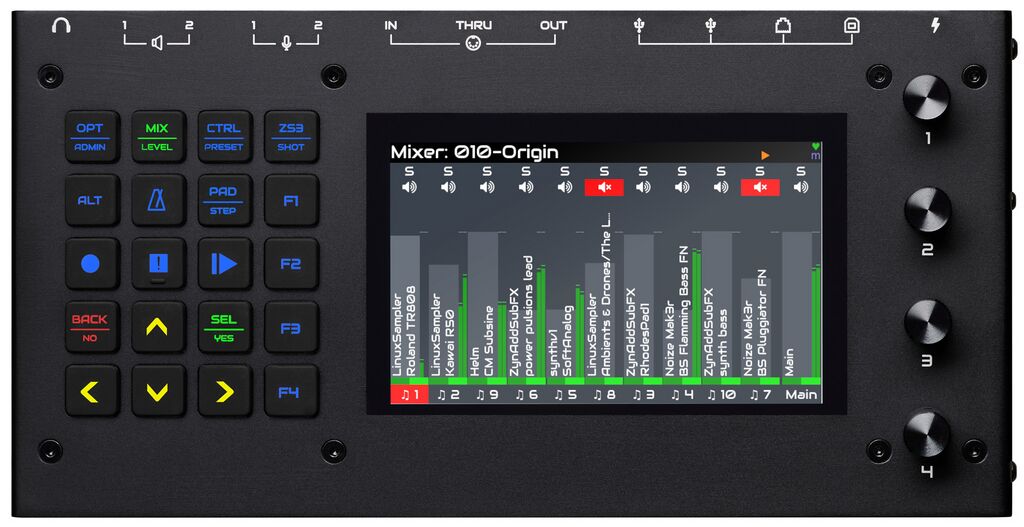
The zynthian V5 user interface is managed primarily with:
Alternately, the zynthian UI can be managed:
This guide covers only the primary UI using knobs, buttons and touch interactions. For the rest, please, visit the zynthian wiki.
There are five knob actions:
 Short Press: Pressing a knob for less of 0.3 seconds triggers the short press action(*).
 Bold Press: Pressing a knob for more than 0.3 and less than 2 seconds triggers the bold press action(*).
 Long Press: Pressing and holding a knob for more than 2 seconds triggers the long press action(*).
 Rotate: Rotating a knob may adjusts a parameter value, change the selected item on a list or move the cursor horizontal or vertically. Knob acceleration allows for finer adjustment at slow rotation and coarser adjustment at faster rotation.
There are three button actions:
Short Press: Pressing a button for less of 0.3 seconds triggers the short press action (*).Bold Press: Pressing a button for more than 0.3 and less than 2 seconds triggers the bold press action(*).Long Press: Pressing and holding a button for more than 2 seconds triggers the long press action(*).(*) The timing for the press actions can be configured from the webconf tool, in the advanced UI options tab.
Note that not all knobs/buttons have mapped functions for each action type. Knob/button actions can change their function depending of the context. This is well documented across the help pages for the different views. Remember the action icons shown above as they would be used along this guide.
Finally, you can modify the default action map from the webconf tool, accessing the advanced options in the wiring layout section. We don't recommend you do it, but up to you!
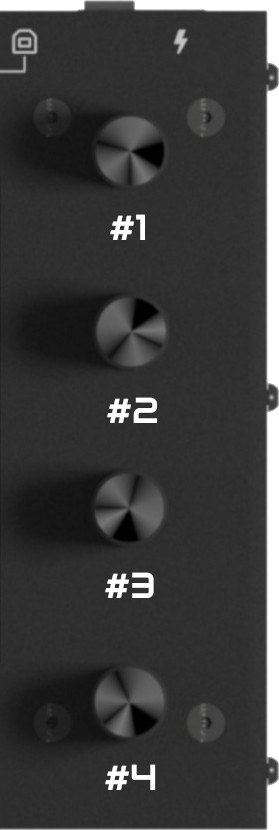
The V5 knobs behave quite differently from the V1-V4 knobs. Because of the 20 silicone buttons, there is no need to use the knobs' switches to navigate the UI which now is best achieved with the push buttons, so knobs' switches have been mapped to more contextual functions, like MIDI learning. The knobs are numbered from top to bottom, so the top one is knob #1 and the bottom one is knob #4. We will refer knobs in this way throughout this guide.
Although knobs' behavior is contextual, there is a pattern that can serve as a general rule and applies to many views:
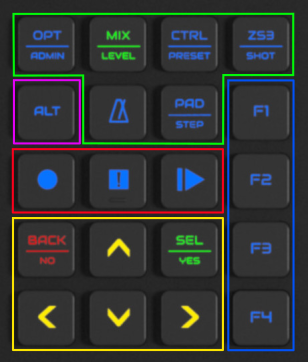
The V5 push buttons grid is divided in 5 groups. The picture shows the 5 groups outlined with different colors:
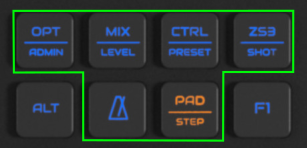
View buttons are outlined in green in the picture and they allow direct access to the main views. Most of these buttons have 2 views assigned with a horizontal line separating the two printed labels. The primary view is printed at top and the secondary view is printed at bottom. The "metronome" button is the exception.
Short-push on the button to access:
LED color depends of the current view:
The view buttons are, from left to right and top to bottom:
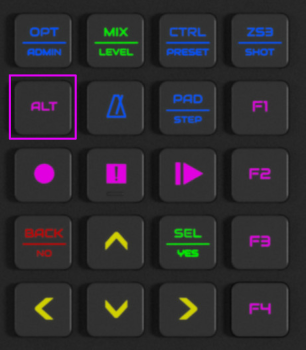
The ALT button have 2 functions:
When you the ALT mode, the ALT button and the buttons having an alternate function will change their default color from blue to purple or orange. Purple denotes default alt function. Orange denotes custom alt function.
ALT mode is contextual, depending of the current view. By default, only transport and function buttons (F1-F4) have alternate functions, defined like this:
Some views have a custom ALT mode with specific functionality that partial or totally overrides the defaults. ALT mode state is kept for each view. The details about the custom ALT modes are documented for each view separately.
Bold-push ALT button to open the contextual help for the current view. From the help screen you can:
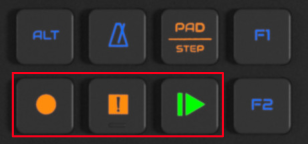
By default, transport buttons control the global audio recorder/player and the default color is blue. When ALT mode is enabled, transport buttons control the MIDI recorder/player and the color is purple.
In some views, transport buttons have specific (contextual) behaviour. When this happens, they will light orange to denote their normal behavior is altered. See the specific view section to have the details.
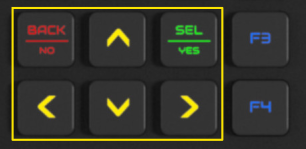
Navigation buttons are used for basic navigation and operation:
These buttons are considered to be customizable buttons, e.g. if you want direct access to other views, etc. you may reconfigure these buttons using the webconf tool.
As explained above, while describing the ALT-mode, these buttons are assigned by default to MIDI Program Change messages:
This default configuration is fine for learning/recalling subsnapshots (ZS3) and you may find this really useful if you use your zynthian as a keyboard expander.
Some views have custom ALT modes that redefine F1-F4 button functionality. For instance, the launcher view or the pattern editor.
Some buttons have a global tertiary function assigned to the long-push action:
At the top of the display there is usually a bar that contains information. This may not be visible for some views, such as confirmation or information pop-ups. The top bar is composed of 2 blocks:
The title bar acts as a kind of breadcrumb. It normally shows the view's title or info about the current snapshot, zs3 or chain (MIDI channel, engine, bank & preset).

On the top-right corner, aside the title bar, is an area where some useful information is displayed in real time:

The DPM covers the range -50dBFS to 0dBFS, i.e. maximum permissible level at full scale (far right) down to 50dB below (far left):
There are independent meters for left and right channels which monitor the system output, i.e. the mix of audio that feeds the Zynthian output. Level decays with a logarithmic rule, taking one second to decay to -200dBFS so will decay to -50dBFS (the displayed range) in about quarter of a second. Peaks are displayed instantly, i.e. the attack of the meter is immediate (*). The peak hold bar remains for two seconds or until a higher peak is reached.
This meter is the same as the main mixbus DPM that is always visible in the mixer view and is therefore hidden when the audio mixer view is shown.
| Health & Load | ||
|---|---|---|
| ♥ | CPU Load | Heart, indicating CPU load. It displays as green when under 50%, yellow when load is over 50% and red over 75%. |
| ↺ | Software Update Available | When a software update is available, the green recycle symbol is shown. You can update from the admin menu, webconf or terminal. |
| ⚠ | XRun | It's shown when there are XRuns. This may be accompanied by clicks and pops on audio output. This means the CPU can't process or transfer audio fast enough and you should consider disabling some CPU-hungry option (like VNC, headphones, etc.) or reducing the complexity of your chains. |
| ⚡︎ | Under-voltage | Zynthian is working in a degraded state, with the CPU frequency capped to 600-800 MHz, trying to stabilize the system and avoid a system crash. You shouldn't see that icon and if you do so, you should consider looking for a better power source. |
| 🌡 | Over-temperature | Zynthian is working in a degraded state, with the CPU frequency capped to 600-800 MHz, trying to stabilize the system and avoid a system crash. You shouldn't see that icon and if you do so, you should improve heat dissipation (using a heat sink, etc.) |
| MIDI activity & Playing/Recording | ||
| m | MIDI-IN | MIDI messages received. Underscore indicates system messages such as MIDI clock. |
| ● | Recording Audio track | An audio track is being recorded. |
| ▶ | Playing Audio track | An audio track is being played. |
| ● | Recording MIDI track | A MIDI track is being recorded. |
| ▶ | Playing MIDI track | A MIDI track is being played. |
| ● | Recording Pattern | Record is armed in pattern editor. |
| ▶ | Playing Pattern Playing Audio Clip |
A step sequencer pattern or audio clip is being played from the launcher. |