Basic Operation
- Rotate knobs 3 & 4 to move the cursor vertical or horizontally. With ALT mode disabled, arrow buttons can be used for this too.
- Short-push knob 4 to add/remove notes. Bold-push knob 4 to edit note parameters. SEL button can be used for this too.
- Rotate knob 2 to adjust the zoom in and out. Short-push knob 2 to reset zoom to the default value.
- Short-push knob 3 to enter block selection. The block operation workflow is explained in detail in the section below.
- Short-push OPT button to open the pattern options menu that allows modifying all pattern parameters. Bold-push knob 2 is a short-cut to modify the pattern length.
- Short-push knob 1 to toggle between the note & CC editor.
Recording Patterns
Push REC button to enable MIDI recording. While record is armed, the REC button will light with red color.
Step by Step Capture
If the pattern is not playing, note events will be captured at the cursor's position, moving the cursor to the next step. You can use the sustain pedal to skip steps.
Live Capture
If the pattern is playing, note and CC events will be captured in real time. They are recorded at the exact time they are captured, without quantization. If desired, quantization can be applied to replaying (see pattern options menu). While live capturing, history is saved on each pattern loop, only if new notes were captured.
Undo/Redo
In ALT mode, you can use the arrow keys to undo/redo:
- LEFT: Undo last edit operation.
- RIGHT: Redo last undone operation.
- DOWN: Undo ALL.
- UP:Redo ALL.
There is an alternate workflow for undo/redo, that can be used for convenience or when ALT mode is not easily available:
- while record is armed (REC button lighting in red)...
- bold-push BACK button to enter history navigation mode.
- rotate knob 4 to move along the history.
- push BACK to exit.
Note that although the number of history steps is unlimited, history is not saved in the state and will be lost when loading the snapshot again.
Snapshots will save the last state only.
Note Parameters
Each note in the pattern can be edited by positioning the cursor on it and bold-selecting it:
- Bold-push knob 4 or bold SELECT to enter the parameter editor for the selected note.
- Rotate knob 4 or use LEFT/RIGHT buttons to select the parameter.
- Rotate knob 3 or use UP/DOWN buttons to change the value of the selected parameter.
- When available, rotate knob 2 to fine adjust the value of the selected parameter.
This is the list of parameters you can edit:
- Duration: In steps. Use knob 2 to fine adjust.
- Velocity: MIDI note velocity, from 0 to 127.
- Offset: Relative offset respect to the note's start step.
- Stutter Speed: In number of retriggers per beat.
- Stutter Velo: How note velocity evolves along the stutter. It can be: FLAT, FADE-IN, FADE-OUT
- Stutter Ramp: How retrigger speed evolves along the note duration. It can be: NONE, SPEED-DOWN, SPEED-UP
- Play Frequency: Skip/Play every N loops.
- Play Chance: Probability of play.
- Stutter Frequency: Stutter every N loops.
- Stutter Chance: Probability of stutter.
Regarding the stutter speed ramp effect, it's worth commenting how it works in detail:
- Speed ramp-up: Increases stutter speed from the specified speed along the duration of the note.
- Speed ramp-down: Reduces stutter speed from a calculated value to reach the specified speed at the end of the note duration.
When modifying note parameters, the value change is inmediate, in real time. You can modify note parameters while
the pattern is playing and you will hear the result as soon as the playing cursor reaches the note you are modifying.
Visual Feedback
Most note parameters have some visual feedback:
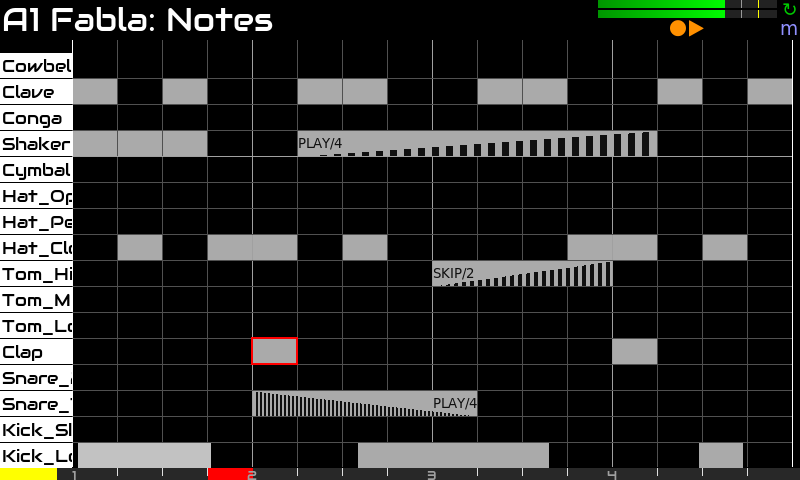
- Note's duration is represented by the rectangle's length.
- Note's velocity is represented by rectangle's background color. Rhe lower the velocity, the darker. The higher the velocity, the lighter.
- Note stutter is presented as a sequence of vertical bars.
- Stutter speed is proportional to the "bar density".
- Stutter velocity effect is represented by the bar's growing direction.
- Stutter Speed Ramp has no visual feedback. Sorry!
- White labels represent play frequency or chance.
- Purple labels represent stutter frequency or chance.
If you apply several chance or freq properties simultaneously, you would only see represented one of them as label. Label priority is:
- Play Freq
- Play Chance
- Stutter Freq
- Stutter Chance
Block Operations
Block operations allow to select a set of notes and perform an operation on all of them, like copy/paste or modify a note parameter.
Block operations can be performed with knobs or in ALT mode, with buttons. Choose the workflow that best suits you:
- Short push knob 3 or short F3 to enter block select mode
- Rotate knob 3 & 4 or use arrow buttons to adjust the selection
- Short-push knob 4 or short SEL to copy the selection.
- Short-push knob 3 or short F3 to cut the selection.
- Bold-push knob 4 or bold SEL to select notes and enter MULTI edit mode.
- Rotate knob 3 & 4 or use arrow buttons to move the block across the pattern grid.
- Short-push knob 4 or short SEL to paste the block.
- Repeat steps 4 & 5 as many times as you want.
- Push BACK to end.
Note this workflow is common for the different block operations, being step 2 what makes the difference.
Copy/Cut & Paste operations use green color for the selection while the MULTI edit block is colored in blue.
If you are using the ALT mode workflow with F3 button, please note that in ALT mode, arrow keys are normally used for navigating history (undo/redo).
When entering block select mode by pushing F3, arrow keys will change its behaviour, allowing to adjust the selection and move it to paste.
MULTI edit mode
You can follow 2.c workflow to edit a set of notes at once. Only velocity and duration parameters can be multi-edited at the moment.
When in MULTI edit mode, you can:
- Rotate knob 4 to choose the parameter to multi-edit. Only velocity and duration are currently available.
- Rotate knob 3 to modify the value of the selected parameter. Values are changed incrementally (relative) to their original values, unless you reach the range limits.
- Short push BACK to exit MULTI edit mode.
When you exit MULTI edit mode, the block will remain “selected”. You know this because of the “blueish” color of the selected notes.
Although the block is still selected, you can add notes, edit single notes, etc. normally. So having the block selected doesn’t affect normal operation.
But you can re-enter MULTI edit mode again by bold pushing knob 4. You can un-select the block by pushing back.
Bold push knob 3 to multi-edit all notes in the pattern.
Pattern Options
Short-push ALT to open the pattern options menu that let you modify the pattern properties as well as a bunch of edit options. These are the pattern parameters:
- Rename: Change the sequence's name displayed in the launcher's pads.
- Play mode: DISABLED, LOOP, ONE-SHOT, PLAY 2 TIMES, ... PLAY 24 TIMES
- Program Change: The program change number that is triggered with the pattern. It can be used for changing ZS3s, etc.
- Length: The pattern length in bars and beats.
- Steps/Beat: The number of steps per beat. The step is the smaller unit of time in the pattern grid, but event's position and duration can be adjusted by fraction of step.
- Quantization: Quantization can be DISABLED or set to 1, 1/2, 1/3, 1/4, 1/6 step.
- Swing Amount: The amount of swing in %.
- Swing Divisor: The number of divisions used for swing. Use 1 with 30% to get a perfect ternary swing.
- Time Humanization: Randomize note's time following a gauss distribution to simulate human imprecission.
- Velocity Humanization: Randomize note's velocity following a gauss distribution to simulate human imprecission.
- Note Play Chance: The probability of playing pattern notes in %. This allows omitting notes ramdomly.
- Scale: The scale used by the pattern editor.
- Tonic:
Edit options
- Rest note:
- Chord mode Allows to add full chords instead of single notes.
- Transpose pattern: Transpose the pattern by a number of semitones.
- Copy this to clipboard: Copy the pattern to the clipboard.
- Paste from clipboard: Paste the content of clipboard to the current pattern.
- Load pattern: Load a pattern from file.
- Save pattern: Save the pattern to a file.
- Import from SMF: Load a pattern from a Standard MIDI File (.mid)
- Export to SMF: Save the pattern to a Standard MIDI File (.mid)
- Clear pattern ALL: Delete all notes & CC events from the pattern.
- Clear pattern notes: Delete all notes from the pattern.
Pattern Copy/Paste
You can copy/paste full patterns by entering ALT mode. There are two copy/paste buffers (F1 & F2).
Free buffers light orange. Busy buffers blink like this:
- Blink in Green: The content can be pasted with short-push.
- Blink in Red: The content can't be pasted. It's an audio clip.
- Blink in Orange: Can't paste over itself. The selected pattern is the copied one.
Bold-push F1 or F2 to copy the pattern into the clipboard. If the buffer is busy, the content will be overwritten.
Short-push F1 or F2 when blinking in green to paste the content on the current pattern. If the current pattern is not empty, you will be asked for confirmation.
This workflow complements the launcher's copy/paste workflow. You can paste patterns you copied from the launcher and you can copy
the current pattern to later be pasted from the launcher.