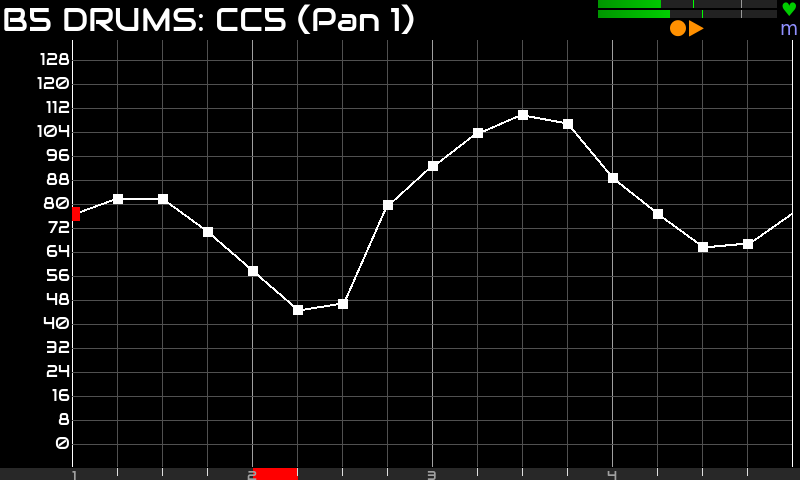
The pattern CC editor allows you to automate parameter changes by adding MIDI CC events to your sequencer patterns. The contextual menu (OPT) allows modifying the pattern parameters and edit options.
The PLAY/STOP buttons can be used to play/stop the pattern. The REC button enables MIDI CC live-recording while playing (real-time).
The ALT mode allows accessing special functionality like undo/redo and copy/paste patterns.
Live recording, undo/redo and copy/paste patterns are also supported by the CC editor and they work very much as they do in the note editor.
For each pattern, you can automate up to 127 paramters using the 127 available CC numbers.
Before you can automate any parameter, you need to assign the parameters you want to automate to the CC numbers you want to use. There are 2 ways of doing this
Once you have assigned the parameter you want to automate, from the CC editor, proceed like this to create your CC pattern by hand:
You can use the finger to plot the curve and move points up & down. You can also live record (REC + PLAY) and move the assigned knob from your MIDI controller.
While playing, CC values are interpolated for every clock tick (1920 ticks per quarter note). CC interpolation is enabled by default except for pedals (i.e. CC64).
From the pattern options menu, you can toggle CC interpolation for each CC number separatelly, clean the CC pattern while keeping notes and much more.
Of course, all editing and parameter adjusting can be done while the pattern is playing, so you will hear the result inmediatelly, while modifying CC values in real time.
Push REC button to enable MIDI recording. While record is armed, the REC button will light with red color.
It's not supported for CC events.
If the pattern is playing, note and CC events will be captured in real time. They are recorded at the exact time they are captured, without quantization. If desired, quantization can be applied to replaying (see pattern options menu). While live capturing, history is saved on each pattern loop, only if new notes were captured.
In ALT mode, you can use the arrow keys to undo/redo:
There is an alternate workflow for undo/redo, that can be used for convenience or when ALT mode is not easily available:
Note that although the number of history steps is unlimited, history is not saved in the state and will be lost when loading the snapshot again. Snapshots will save the last state only.
Short-push ALT to open the pattern options menu that let you modify the pattern properties as well as a bunch of edit options. These are the pattern parameters: